Any aspiring PowerPoint ninja needs to be familiar with a subset of important features within PowerPoint. Through a series of PowerPoint Ninja “toolbox” articles, I will cover some of these key features. Whether you’re using PowerPoint 2003 or 2007, one of my all-time favorites is the Format Painter feature.
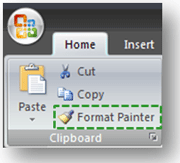
Format Painter is fairly easy to find. It is right on the Home tab.
Format Painter is fairly easy to find in PowerPoint 2007. It’s right on the far left-hand side of the Home tab of the Ribbon. In fact, Format Painter can be found in the same location in Microsoft Excel and Word. I always like to have the Format Painter available so I’ve added it to my Quick Access Toolbar.
As you work on presentations, you’re frequently working with multiple objects and text boxes. In order to keep your presentation looking professional, you need to ensure that objects are formatted consistently. It can be time consuming to format each new shape or text box from scratch. Format Painter enables you to copy the formatting of one object and apply it to another. You simply click on the object with the formatting you want, click on the Format Painter button, and then apply it to another object by clicking on it. If you double-click on the Format Painter button, then the same formatting can be applied in multiple places.
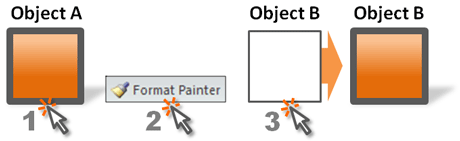
This diagram shows how Object A's formatting can be copied to Object B.
Format Painter is a simple but powerful weapon in the PowerPoint Ninja Toolbox. It can significantly speed up the process of building your presentations slides, and it can enhance the consistency and professional appearance of your slides. The PowerPoint Ninja says, “Go and paint wisely!”



October 29th, 2008 8:32 am
Keep up the good work.
January 26th, 2010 10:26 am
Great post. I’ve been looking for this exact information for a while now. Bookmarked!
February 26th, 2010 1:21 pm
I love the format painter! But why won’t it work on bullet points?
February 28th, 2010 9:05 am
It does work. It’s just a little picky. Make sure you’ve selected all of the bullet point (text and bullet point). It’s best to highlight more than one bullet because then you know you’ve got both the text and bullet point.
Then make sure when you’re painting the format that you “paint” the entire receiving bullet point, not just a portion of the text. Again you might want to paint more than just one bullet point on the receiving end.
July 2nd, 2010 7:17 am
In 2003, (as far as I can tell) Format Painter will not paint bullet styles no matter how one uses the tool. I would love to be proven wrong about this.
July 20th, 2010 9:38 pm
Highlight the entire line (everything, not just part of the line) and then highlight the entire line you want to change the bullet style. I just tested it, and it works.
September 6th, 2010 12:48 pm
Thank you. Can you please tell me the key command for this in PPT 2010? It used to be Cntl Sh C, Cntl Sh V. Doesn’t work now.
September 7th, 2010 11:53 pm
Unfortunately, I’m not on PPT 2010 yet.
October 2nd, 2010 5:14 pm
Having it in your Quick Access Toolbar is very useful and saves a lot of time.
March 21st, 2012 9:19 pm
I have a bunch of slides already made and need to change the formating on each one. Is there a fast way to do this with the painter? Everytime I use it, I loose the function and have to renew it.
March 22nd, 2012 9:19 am
It depends what you’re reformatting. Not everything is going to work with the Format Painter. In most cases if you want to reformat multiple things over and over again, you’ll want to double-click on the Format Painter and it will hold the format function and you won’t have to renew it each time.
Brent.
October 29th, 2012 3:22 pm
when i change slide the format painter style i have saved is lost? this seems pretty dumb, what if I want to format different bits of text on different slides
November 12th, 2012 10:08 pm
I’m not having that same problem. Sorry I can’t duplicate the issue.
Brent.
March 13th, 2014 8:00 am
Thanks a LOT, never knew about the double click, you just saved me ~30% of my day today!