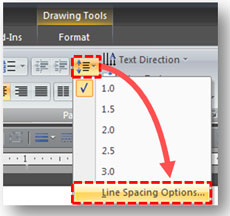
How to access the line spacing options in PowerPoint 2007.
If you used PowerPoint 2003 and recently upgraded to PowerPoint 2007, you probably noticed a significant change in how PowerPoint 2007 handles the line spacing of text within your slides. Line spacing in PowerPoint 2007 and Word 2007 are now almost exactly the same. Microsoft obviously wanted to create a unified approach to line spacing across its Microsoft Office suite. However, the simple and straightforward approach in previous versions of PowerPoint is now a little more tricky.
PowerPoint should not be treated like a word processor, and the new options – while ideal for Word documents — are overkill for presentation slides. In this article, I’ll show you how to achieve the same line spacing results in PowerPoint 2007 that you had in earlier versions of the presentation software.
Why is line spacing important?
Line spacing is important in PowerPoint because you want to make sure that your audience can easily read the copy on your slides. If your bullet points or other text are not adequately spaced out, they may be more difficult to read. There are two important considerations for line spacing: spacing within a paragraph or bullet point (each bullet point is treated as a separate paragraph in PowerPoint) and spacing between paragraphs or bullet points.
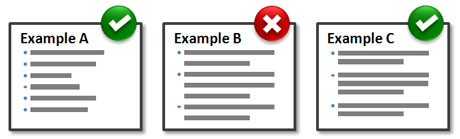
You want to keep bullet points properly spaced out but also grouped together if they extend beyond just one line per bullet point.
If your bullet points are fairly short (i.e., only one line per bullet point) then you only adjust the spacing between paragraphs or bullet points (i.e., spacing before or after a paragraph). The challenge comes when your bullet points are longer (i.e., more than one line per bullet point), and you need to adjust the line spacing within a paragraph as well as the spacing between paragraphs. In cases where you’re using multi-line bullet points, you want to reduce the line spacing within paragraphs or bullet points so that your audience can more easily separate or distinguish the different bullet points on your slides (compare examples B & C in the diagram above).
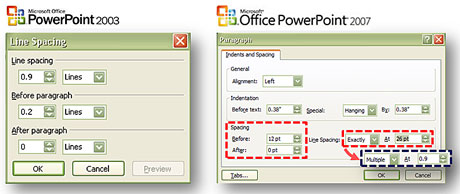
Compare the simplicity of line spacing in PowerPoint 2003 with that of PowerPoint 2007.
As you can see in the side-by-side comparison of the line spacing windows, PowerPoint 2003 keeps it simple and straightforward by enabling you to edit spacing in terms of “lines”. In PowerPoint 2007, you alter the spacing between and within paragraphs primarily in terms of “points”. When you leverage the “Exactly” option to reduce the line spacing within a paragraph, you decrease the line point size (i.e., leading) so it is smaller than the line’s font size.
Another method, which resembles the old way in PowerPoint 2003, is to select the “Multiple” option and make the value less than one “line” (typically 0.8-0.9). This latter method is my preferred approach as it is familiar and easy.



March 27th, 2009 10:28 pm
Great,
now I have to negotiate a menu when I used to be able to do this with a mouse click and watch it happed to achieve optimal line spacing.
ANOTHER MS devolution….
March 28th, 2009 6:46 am
Welcome to the “not-a-fan” club for the new line spacing options in PowerPoint 2007. Consistency across Office products came at a price in this case.
April 1st, 2009 9:33 pm
After an upgrade from Office 2003 to Office 2007, text formatting are whacked and the bullets on presentation slides are also lost.
April 7th, 2009 10:20 am
Add me to the list. It was a terrible idea to remove the paragraph spacing functions – and I used those all the time. I am seriously considering punting Office 2007 and going back to my old version.
April 28th, 2009 5:32 pm
I think Microsoft changed this because power users were clamoring for more control (1) over line spacing in particular and (2) more consistency across applications in general.
New features and changes always come at a price, I agree, and there will be those (like me) whose fingers are far more accustomed to the old shortcuts and got by just fine. My fingers are still relearning. (Funny thing about peers and competitors: the better ones are usually faster at relearning than I am.)
July 29th, 2009 10:29 am
New features and changes DO NOT have to “come at a price”! It would have been literally trivial to keep the button-click more/less functionality of PP’03. Hopefully, someone will publish a hack to restore this very valuable feature.
July 29th, 2009 10:47 am
I would welcome a hack as well. 🙂
February 13th, 2010 9:33 pm
Thank you for this explaination! It’s good to know I’m not crazy! I thought, “no way MS would remove the increase/decrease line spacing buttons – I must be missing something?” No I know they are stupid – not me!
February 26th, 2011 4:07 pm
Thanks for the explanation. I have found several features in 2007 to be difficult to find because of the #%Q@#$@# ribbon. I kept hunting for my line spacing button and could not find it anywhere. Searched through Help for quite awhile. Nice to finally know it just doesn’t exist anymore. I was thinking that 2003 was good enough. Now I am thinking it is better.
June 21st, 2011 3:07 pm
What if I am using a multiple primary bullets with sub-bullets. Typically, I would want the paragraph space to only occur between each primary bullet leaving the sub-bullet right below the primary. I typically achieve this by having a line with not text between each, is there a simplier option?
June 23rd, 2011 2:21 pm
Unfortunately a lot of folks who really don’t know the answer claim that it cannot be done. The fact is that it can be done and if you want to learn this and LOTS of other ways to make your software more relevant and productive, as it should be, YOU SHOULD COME AND GET TRAINING !!!
Otherwise it’s like buying those $900 hi performance skis but never, ever going to a real mountain to ski. You’re wasting the power and efficiency available to you. Take a Ski Lesson, then come to New Horizons and get some serious training, The return on your time and $$ is huge !!
How many minutes or hours did you spend on this issue? And some of the others, whining about the ribbon!? If you would be willing to be trained, you could learn the ins and outs after which you’d be telling everyone that the Ribbon is a lot faster. You simply haven’t been taught yet.
Managers – BUDGET $$ and time for training so that ROI maximums are achievable. You cannot just use and discover the power of Apps today.
Sad to hear all that this string elicited from so many end users.
June 25th, 2011 7:15 pm
This post is about line spacing, not the Ribbon. Too much negative energy to respond to the rest.
June 23rd, 2011 2:28 pm
Wow !! The name of this site just hit my brain. PowerPoint Ninja ??? I could think of something derogatory but instead let me just say that we have Instructors and Users who are Microsoft CERTIFIED Master MOUS, MOS, and now MOUS is again the acronym. We’re now into Office 2010 and the ribbon is a major leap forward in power and versitility. I’ve been teaching Office Apps and Office Suite integration for 15 years – that’s back when the PC and Apple MAC versions of Office were totally interoperable. 1994–>. Use the Master Slide to modify paragraph spacing for that bullet or outline Level. Once the more rigid automated spacing has been changed, you can then make modifications per slide and see them take effect immediately. Yes, it’s more clunky than Word, but then it’s NOT a word processor. There are very efficient ways to integrate the two apps in the Suite of tightly integrated productivity applications. People really need to get training for these increasingly complex labs. Master Slides have been around for nearly 20 years.
June 29th, 2011 9:50 am
I’m an IT consultant with a heavy user background. Tim IT Trainer’s post is one of the funniest ones I’ve seen in a long time. Users should have to get training (a lot of it) just because they upgrade Office from 2003 to 2007????? Un-freaking-believable! I was a reasonably savvy user of Word/Excel/PPT for over a decade. I was “upgraded” to 2007 almost 2 years ago by my company and I’m STILL not as productive as before. Sure, there are some improvements (easier animation in PPT is an example). But overall, Office 2007 is like the tax code: a boon to accountants and lawyers (read: trainers) and a serious, overly complex handicap for actual users everywhere. I can just envision the critical session at MS late one night: “We’ve got to make it different; unless it’s different, there won’t be a reason for anyone to buy it.” And “Hey, they won’t like it at first but they’ll get used to it.” The arrogance of MS (and people like Tim IT Trainer) is off the charts. I’m in the process of investigating Open Office. It’s not perfect but it would get me off the MS upgrade-hell track. Actually, a lot of our clients have refused (partly becauses of horror stories like mine) to make the move to 2007/2010 so it’s proving to be a major hassle to save files in the old doc/xls/ppt file formats for them. Many times what they see when they open the file is not what we were looking at in the newer, “improved” versions. Happened yesterday with a Fortune 500 insurance company.
Hey, MS: you were counting on the problems of backward compatibility to push everyone to upgrade. What happens now that those same problems are discouraging many from upgrading? Nothing lasts forever. I still remember how unassailable Lotus 1-2-3 and WordPerfect seemed at the time. Bottom line: Office 2007/2010 is simply not as good a product, all things considered, as the older versions. It’s the Emperor’s New Clothes of packaged software.
July 27th, 2011 1:07 pm
As a user of powerpoint for many years I was shocked to see the “reduce line spacing” icon removed from Powerpoint 2007. It is used all the time to adjust spacing of text on slides. Text/bullets are the most used methods of presentation and animation is a fun to have but not used as exetensively. I can’t believe that now in order to squeeze some lines together, I have to go into a menu and guess at the line spacing (by experimenting with spacing widths) to get the preferred spacing. Someone also recommend going into the master first to adjust, which is missing the point. We need to squeeze text slightly, or reduce space between paragraphs, to fit bullets on slides, not adjust the master. Whomever made this deciscion at PPT should be fired. Oh, and the help programs they provide to map 2003 to 2007 conveniently leave this button out of the 2003 version. This is the first time I have ever posted anything anywhere…….just had to vent.
October 19th, 2011 10:19 am
Finally – Someone actually explains that the line spacing can actually be shrunk and NOT just expanded.
Thank You
Lori……..
November 6th, 2011 7:49 am
Thanks for the tip! It helped me a lot!
Carlos
December 1st, 2011 2:24 pm
The finer control is a plus. But where the heck is that dialog in 2007?
December 22nd, 2011 3:57 am
Does this mean that PowerPoint 2007 doesn’t have proportional paragraph spacing (i.e., Lines instead of Points) like PowerPoint 2003 had?! That was a great feature in PowerPoint because the paragraph spacing between bulltes would adjust automaticlly to look good whether you used a small font or a large font. Now I’ll have to tweak the Points Before Paragraph depending on the font size used for the text on each slide. Thumbs down!
April 26th, 2012 11:32 am
I used 2003 and used the reduce line spacing a lot. I have struggled since I changed companies and have “Upgraded” to 2007.
May 17th, 2012 11:03 am
Agree with comments above. I used the 2003 line spacing option a lot – didn’t appreciate just how much, and how useful it was, until it was taken away ! Why would they get rid of such a great function – beggars belief. And the line/paragraph spacing IS a PP requirement – it’s not a case of looking for Word functionality in PP. MS should just admit they made a mistake, and ‘fix’ it !!
June 13th, 2012 8:47 am
What a bunch of whiners! The solution is easy – customize your button bar. Here’s how:
Click the OFFICE button (top left of window).
Click “Powerpoint Options” at the bottom of the window.
Select “Customize”. Under “Choose commands from:”, select ALL COMMANDS.
Scroll down and select the “Line Spacing” icon and click the “Add” button. While you’re there, see if there are any other options that you’ve been missing and add those, too. When you’re done, click OK. You will now have a button bar that displays below the ribbon with all the little odds and ends you’ve been missing. You can do this to customize Word, Excel, etc.
When you need to adjust the line spacing, click the icon and choose the last option – this will take you to a window where you can adjust the points before or after a line. Once the customization is set, this method is less cumbersome than the procedure listed above.
June 13th, 2012 9:15 am
AKG I think you’ve missed the main point. It’s not about accessing the line spacing feature. The line spacing feature has changed between versions. That’s the main issue. I prefer the 2003 approach, not the 2007-2010 version. BTW – I’m a big fan of the quick access toolbar.
November 27th, 2012 2:32 am
Oh, thanks a lot!! This is exactly want I need it. It was driving me crazy, I thougth this action would be more intuitive.
July 9th, 2013 9:51 am
I must agree that this is a huge problem! The functionality in 03 of increasing/decreasing line spacing is IMPERATIVE to everything I do in PP. I do not need “training”; that is absurd. And I do not feel I’m “whining”. MS made a massive mistake and someone needs to step up and fix it! I do not care a bit about functionality being consistent across all office applications. Not only is it slower, but you can’t even get the same results as before. And the inability to see the spacing change as you click is just so clunky and bad and annoying! Somebody helpt!