
Ooops. I just closed the PPTX file I was working on that I hadn’t saved in a few hours. (c) iStockphoto / Thinkstock
You’ve been working tirelessly on a presentation. The creativity is flowing, you’re in a groove, and you’re masterfully pulling together what will be an epic PowerPoint presentation. For whatever reason as you juggle various files on your desktop, a part of your brain cramps up and you accidentally close (without saving) your presentation. This may never have happened to you, but it has happened to me a few times, including last Friday.
I was building a product demo presentation in PowerPoint, and I was incorporating multiple screenshot images from Photoshop. With multiple PowerPoint files and applications open on my desktop, I stared briefly at a window that I thought was an image I had already captured and cropped in Photoshop. I closed the “Photoshop” file, and then looked for my main PowerPoint file. To my disappointment, I realized I had just closed my PowerPoint presentation. Then my mind raced back to when I had last saved the file – surely I hadn’t been that stupid and had saved it recently. Right? Right?!!
To my horror, I discovered I hadn’t been diligently saving my presentation, and the last saved version was from a few hours ago. I had been “in the zone” previously, and now it was going to cost me dearly.

Don’t hit the panic button if you’re using PowerPoint 2010 (c) iStockphoto / Thinkstock
Panic started setting in because I really didn’t have time to redo what I had already done. Nothing feels as unproductive (and stupid) as reproducing something I had already created once before, especially when it would take me 2-3 hours I didn’t have. When your computer crashes or is unexpectedly interrupted, Microsoft displays recovered files when you restart PowerPoint. However, in this case the software wouldn’t know that user-error had caused me to lose the most recent version of my PowerPoint file. I then thought if PowerPoint’s AutoRecover feature is saving a temporary file of my presentations for when something unexpected happens, a more recent version of my presentation must be sitting somewhere on my computer. If I could just find it, a personal crisis would be averted.
Steps to recover a previously saved file in PowerPoint 2010
Step 1: The first thing you need to confirm is that you have AutoRecover enabled. If PowerPoint’s AutoRecover feature has been disabled, you’re royally screwed (sorry). Go to File > Options and a pop-up Options menu window will appear. Then go to the Save tab. Within the Save tab under the Save Presentations section at the top of the window, you’ll see some different AutoRecover options. Hopefully, you have the two options below enabled (they should be by default in PowerPoint 2010).
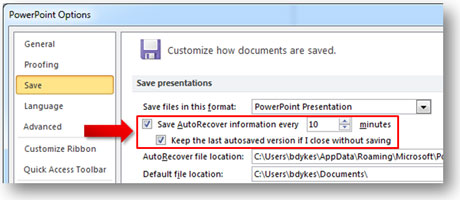
By default you should have these two options checked.
Step 2: In this same window, you’ll see that PowerPoint tells you where it saves the AutoRecover files on your computer.
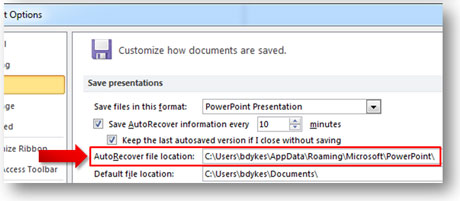
Now you know where to find a more recently saved version of your PPT file
To find these files, I went to my local disk (C: drive) and then followed the folder structure listed below. I can’t recall if some of these folders are hidden so here’s a link to how to unhide folders in Windows 7 and Windows XP. Look for a folder that contains the name of your PowerPoint file and open that folder to find the most recently saved version of your presentation.
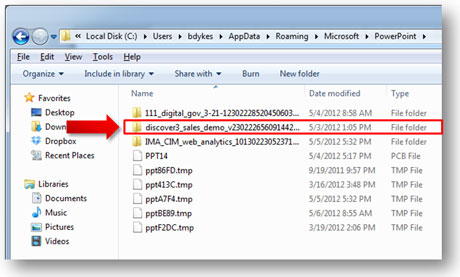
This folder looks like the presentation I was working on.
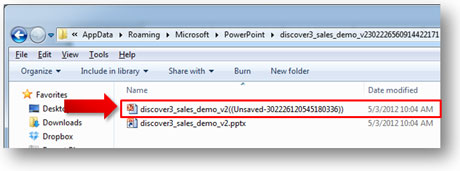
There’s the temporary file I need, saved 13 minutes prior to my ill-timed brain fart.
Steps to recover a new file in PowerPoint 2010
If you’re working on a new PowerPoint file that you never saved before such as a presentation from an email attachment, there’s a slightly different and easier approach for recovering those files. In PowerPoint 2010, just go to File > Recent and at the very bottom right you’ll see a link for “Recover Unsaved Presentations”, which will take you to a folder with PowerPoint files that were never saved when the files were closed.
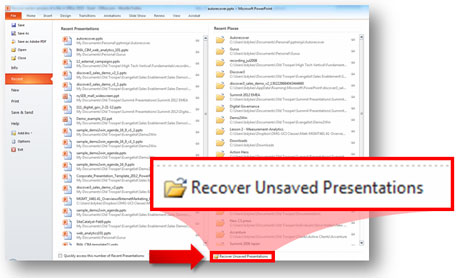
If you didn’t know it was there, you’d probably never see the link.
Note: These files are temporary and will be deleted from your computer if you don’t retrieve them promptly. I couldn’t find any information on how long you have to grab the files, but assume you have 2-3 days max.
Happy Endings

Hooray! I don’t have to spend even more time in PowerPoint! (c) iStockphoto / Thinkstock
The first method worked for me, and I was able to recover all of the work I had lost. I wanted to share this tip in the hope that it helps other people who find themselves in the same situation as me (or may find themselves in the same situation in the future). There is hope! This new feature only applies to PowerPoint 2010 so while my heart goes out to you if you have a previous version, I don’t have any tips for the same situation with PowerPoint 2007 or 2003. It appears the temporary files for those versions were limited to only recovery situations where your system crashed unexpectedly and not user error situations. It’s a good thing I only recently started making user errors in PowerPoint 2010 and never in the other versions…



June 4th, 2012 11:55 am
Strange, just reading the title of this post, made my tummy a little sick. When you can’t retrieve any sort of file you have been working on (even if in the back of your mind you know a way to retrieve it, your immediate response is physical sickness hehe.
Great tips:)
June 4th, 2012 3:54 pm
Panic and sheer terror are other emotions I’ve felt in these situations. 🙂
July 12th, 2012 10:18 am
Thank you man, you saved my life!
August 2nd, 2012 9:07 am
This is amazing!! Thank you so much.
September 18th, 2012 6:59 am
Hallelujah! Thanks for the crystal clear instructions and for saving my bacon. You just saved me a ton of time.
September 20th, 2012 7:34 am
I’m glad it helped!
October 9th, 2012 7:40 pm
Hi
I seem to have lost a powerpoint I have worked on for ages this morning. I opened an attachment to my gmail account, worked on it, saved it and closed it. Yet it doesn’t show up on “recent” in Powerpoint, doesn’t show up on “Recover Unsaved presentations” and isn’t sitting in the C:…AppData\Microsoft\Powerpoint\directory. It must be somewhere. I remember hitting Alt F S before I closed it. HELP!!!
October 18th, 2012 4:32 am
I apologize for not responding sooner, Kerry. When you open a PowerPoint file as an email attachment, start working on it, and save it, by default you’ll save the file to a temporary folder if you’re not careful. In many cases, this presentation won’t show up in the Recent files list. As a result, I would go back to the same email and re-open the original file. When you have the same file open, hit “Save As”. In most cases, you’ll be taken to the exact same temporary folder where you accidentally saved your file. In some cases, you might be saving to another temporary folder, but you at least know the general vicinity of your PowerPoint file. Identify the folder location of your file and move the file to a proper folder. I hope that helps others who run into the same problem.
Tip: ALWAYS use “Save As” if you start working on a PowerPoint file from an email. Do it early so you don’t forget and then wonder where your file is.
Brent.
October 19th, 2012 9:48 am
you saved me!!!!! Thank you for this!!!!
October 20th, 2012 2:10 am
Thank you sooooo much, I can’t believe how tired I was that I closed the wrong window and didn’t save for whatever reason. I was having a full blown panic attack, I didn’t want to do four hours of work over. Thank you thank you thank you thank you 🙂
October 24th, 2012 4:51 pm
You’re a life saver 🙂 I almost lost everything and you helped me so much 🙂
October 25th, 2012 12:56 am
very helpfull
November 14th, 2012 1:17 pm
YOU ROCK
November 29th, 2012 4:46 am
Great
December 3rd, 2012 9:24 pm
I owe you my thanks Sir!
December 12th, 2012 3:24 pm
This was a great help. thank you for taking the time to post it.
By the way, the “Recover Unsaved presentations” button was at the bottom of the “Recent” dialog box, not where you indicated.
December 16th, 2012 7:45 pm
Just Happened to me! Thanks for the tip!
December 18th, 2012 10:00 pm
I too have faced same issues when I have accidentally closed the document before saving it. So, this is very important feature for me. I have never use this feature in PowerPoint But I used it in word 2010 by Clicking Recover Unsaved Documents option. Thank you for sharing it here.
January 21st, 2013 7:05 pm
Thanks! You just save me a million of hours to redo my work. Thankfully I found this article.
January 29th, 2013 8:17 am
tried it, my powerpoint folder was empty:( Worked all night on it from an email, saved a ton of times, never did save as, and it’s not in either of these folders. I appreciate the though, seems like it should
February 7th, 2013 4:09 pm
Thank you! You just saved my life!
February 11th, 2013 7:15 pm
Yes! This worked for me too! I closed my PowerPoint prez without saving the latest changes, and was able to navigate to the right folder using your instructions.
Thanks!
February 13th, 2013 8:09 am
I had been working on a presentation for my Pgcert and powerpoint crashed, thanks to you I managed to locate and restore the version I was working on rather than a previous version minus all the extra work I had done today… thank you!!!
February 14th, 2013 11:05 pm
OMG.. I wish I could buy you lunch!! Absolute life saver. Additional tip, if the powerpoint is not save with at PPT extention, lauch Powerpoint and direct it to read the file!
February 21st, 2013 10:17 pm
You just saved my sanity!!
Thank you, thank you!
February 25th, 2013 10:19 pm
Much better than that “Oh @@#^%43” feeling was that feeling of relief when the modified file was there.
Thank you!
March 1st, 2013 6:36 pm
I gone through you article, thanks to provide information about recovery but I had lost my crucial PPT files before 3 months is it possible to restore PPT file without any destruction to files.
March 19th, 2013 7:04 am
DUDE!!!!!! You saved me BIG TIME!!!!!!!!!! THANK YOU!!!!
April 3rd, 2013 12:46 pm
This just saved me!! Thanks a million.
April 4th, 2013 12:12 am
If you use Microsoft PP 2010 you can recover unsaved data by going to file, info, manage versions, recover unsaved presentations.
April 8th, 2013 9:30 pm
I didn’t know about that shortcut to unsaved presentations. Thanks for sharing!
Brent.
April 8th, 2013 8:09 pm
I have to tell you that you this just kept me from FREAKING OUT. My face is still red and hot because I had already started crying. I can’t believe I closed out of the presentation without saving HOURS and HOURS (literally) of work. “Thank you” doesn’t even seem good enough…but thank you.
April 8th, 2013 9:31 pm
Glad I could help in some small way.
Cheers,
Brent.
April 11th, 2013 3:42 pm
Thank you for your help recovering a power point that I spent hours on and didn’t save because my computer locked up! Whew! Much appreciated.
April 11th, 2013 5:33 pm
God damn dude, I could kiss you right now! Thank you so much!
April 16th, 2013 6:59 am
You saved me a lot of shit with this webpage.
Cheeeeeeeeeeeeeeeeeeeeeeeeeeeeeeeeers
May 5th, 2013 4:19 am
You stopped the tears from the eyes of my little girl.
Thank you so much
May 6th, 2013 11:41 pm
I am thrilled! I lost a power point presentation that had taken me 14 hours to write. With these directions I immediately found it. THANK YOU SO MUCH!!!
May 9th, 2013 8:35 pm
This was very very very helpful. I was about to give up and come clean to my boss that I was an idiot that didn’t even have the presence of mind to save a file. This saved me. Thanks a ton for the clear instructions.
May 22nd, 2013 8:30 pm
Thanks you legend!
May 23rd, 2013 1:35 am
Thank you seems inadequate! You saved me 3 hours of work! Presentation tomorrow! It’s midnight and I just recovered PowerPoint presentation!
You are amazing! I am wishing for good things to come your way!
May 24th, 2013 11:41 am
WOW!!
thanks – It worked like a charm – my computer malfunctinoed for some reason and all the places I HAD stored the copy dissappeared, but I was able to find a recent temp file! Much appreciated clear instructions!
May 24th, 2013 2:50 pm
I would buy you a beer if I could. Probably 10 actually.
July 11th, 2013 1:27 pm
Thank you! I’ve been writing a knowledge base of information for my company with our switch to Office 2010 and I was looking for some tips for PowerPoint. This is something I forgot about that’s critical!
You can do the same thing with Word and Excel, and if folders are hidden, you can just type the entire path and include your login name between “users” and “AppData” like this:
c:\users\USERNAME\AppData\Roaming\Microsoft\PowerPoint
where USERNAME is your login name. It’s easier for a corporate environment where things are locked down tight. Thanks again for the reminder!
July 16th, 2013 7:39 am
I can’t thank you enough for the great tip! My feelings were way beyond panic as we had many pages of client input on the slides before I closed the presentation. This would have taken a lot of hours of forensic work and going back to the client to verify some of the comments/data (not good). Like one of the other comments noted…I am wishing for good things to come your way!
July 24th, 2013 11:31 am
Hi.
I opened an email attachment ppt and worked on it for long. I saved it many times in between and then closed it. Didn’t realize that I didn’t do save as. Now I cant find it. I am using office 2007. Is there any way to recover it? I checked the auto save option – it saves every 10 minutes.
Please help!
July 28th, 2013 8:21 pm
Thank you! I was just in the same situation 10 minutes ago. I really felt stupid, why did I click “don’t save”. Good thing I still had the sense to Google the remedy. Thank you so much for sharing. You’re the best!!!
August 1st, 2013 8:07 pm
THANK YOU! THANK YOU! THANK YOU! I was just about to give up hope that I could recover the file, and your instructions saved the day! I can not thank you enough!!!!!!
August 6th, 2013 7:29 pm
I was working with two presentations side by side. The first I was able to recover, I’d saved it previously. The important one that I’ve been slaving over ALL DAY is nowhere to be found. I never did save it, but I didn’t close out of it. I was adding another slide and it just crashed on me. Is there any hope?
August 9th, 2013 11:38 am
I can definitely vouch for this solution. it works.
In addition for folks like me for which Powerpoint did not seem to recover the ppt, try to open some of the most recent temp file in the recovery folder, your ppt should be among them….
August 13th, 2013 8:49 pm
please write back an answer because i cant seem to find my power point:( need it in less than 20 minutes!! ahhh
August 14th, 2013 4:51 pm
Thanks so much…. saved me a lot of hrs of redoing…did’t know this before.
August 16th, 2013 7:24 am
Thumbs up! Your help is appreciated!
August 22nd, 2013 1:03 am
Thanks MICROSOFT! I kneel before you because you saved my entire life with automatically setting the default options to autosave each 10 minute; I love YOU!
August 24th, 2013 9:17 am
Thanks.
August 28th, 2013 5:32 pm
Thank you so much! You’ve saved the day.
August 29th, 2013 3:01 am
Panic period was only short – albeit intense – thanks to you. Cheers!
September 23rd, 2013 11:56 pm
Thank you soooooo much! I had to re-read the directions on how to reveal hidden files very carefully. First several attempts failed, but by carefully re-reading, I finally got the hidden files to appear and then I found it! You saved me from having to ditch tomorrow’s plans!
September 24th, 2013 2:09 am
I have older Office Version and this didnt help. Instead I navigated to AppData\Local\Temp and sorted the files by Date Modified. Found a strange looking ppt67AA.tmp file. Renamed it to ppt67AA.ppt and it worked!! 😀 Thank You for this good post and I hope you can add this nifty trick too as a side note.
September 30th, 2013 4:25 pm
I confirmed that PowerPoint was set to auto recover every 10 minutes. I unhid the folders and found the destination folder, but it was empty… Have you ever had this happen? There’s several hours of work out the window!
September 30th, 2013 10:19 pm
Thank You For This! Saved me a ton of rework, and from staying up all night.
October 9th, 2013 8:47 pm
Great Work… thanks for instructions…. 🙂
October 17th, 2013 6:26 am
Sucks: My work was in neither folders and gone forever after PP crashed – only the unsaved presentation was gone, the other !”$&T was re-opened. sucks!
October 20th, 2013 10:48 am
Thank you, I almost got a heart attack
November 5th, 2013 7:15 am
You are start mate.. you saved my 4 hour work.. Thanks a ton again.. yoohooo..
November 11th, 2013 9:42 am
Life saver! BIG thanks!!
November 11th, 2013 1:40 pm
Thank the lord for you!!!!!!
I had the biggest panic attack in history.
You sir, have saved my life.
November 19th, 2013 2:44 am
THANK YOU MAN
November 30th, 2013 12:03 am
I didn’t save a PPT file properly and clicked “discard autosaved files” when asked.
Used your method to find the autosave file for PPT and found a copy of my unsaved work there.
Awesome!
– Thanks mate!
December 12th, 2013 7:53 pm
Perfectly presented including link to reveal hidden folders. Thanks!
December 16th, 2013 8:48 am
Wow! THanks man! You saved me ALLOT of school work! Thanks!
December 16th, 2013 8:48 am
Awesome! Thanks man! You saved me ALLOT of school work! Thanks!
January 6th, 2014 12:27 am
Thank you!!!!!!!!!!!!
January 6th, 2014 11:38 am
I love you. I love you so much it’s unreal. I was fully believing I would have to re-do a full day’s worth of work. The relief. The joy. I have never been so happy in my life.
January 12th, 2014 3:37 pm
Thank you so much. This was so helpful and easy to follow.
January 27th, 2014 3:36 am
Thank you ….. So much!!! you just saved my day!!
February 13th, 2014 4:55 am
you are the best mate! you just saved my life!
February 17th, 2014 11:38 pm
Thank you so much. It worked liked charm. I was regretting like hell…
Thank you so much
March 23rd, 2014 12:06 pm
Thank you so much, it worked a treat! The relief in not having to redo 4 hours work.
March 28th, 2014 5:45 pm
I LOVE YOU!!!! I have been working on this presentation for 9 hours and accidentally closed without saving. You are the BEST! Thank you sooooo much for sharing!!!!
April 11th, 2014 1:02 pm
Doesn’t work. “Recover unsaved files” is empty. Too bad!
April 22nd, 2014 3:15 am
Thank you very much, your explanation helped me to recover one week work that I thought it is already lost.
April 24th, 2014 10:36 pm
THANK YOU SO MUCH!!! I started crying and panicking when I realized what happened. My computer randomly closed power point while I was working on my slides, and this just saved my day!! So grateful!
May 21st, 2014 12:33 pm
Saved my life
August 8th, 2014 11:44 am
I also just got a sudden message that PowerPoint had a problem and was closing. You just saved me the time of rebuilding all of those slides again. And reminded me of the importance of saving often!!!
August 21st, 2014 2:34 am
Thank you so much..!! Wonderful.!!
September 17th, 2014 11:51 am
Thank you so much for those tips! I had no idea that the ‘recover unsaved presentations’ feature was available. What a relief to get the doc back!
September 25th, 2014 2:19 pm
Hey pptninja, THANK YOU THANK YOU THANK YOU. Today I was in this situation, last save 5 hours ago, nearly final at 10pm, and very tired I closed the file without saving. Then I was awake again :-). With your instructions I managed to get the file back. You are GREAT, THANKS SOOO MUCH
September 26th, 2014 5:58 am
I want to give you a huge, bear hug. Thank you!
October 9th, 2014 10:14 pm
OMG!!!! This freaking saved my life!!! I forgot to save! I did the 1st part and was like OMG, it’s still not there then scrolled down and read the rest and it worked!! You are AMAZING!!! Thanks so much for posting this!!!!!
April 22nd, 2015 10:00 am
You just saved my butt
April 22nd, 2015 7:29 pm
Thanks a lot. You save the day
April 26th, 2015 11:35 am
This article saved my life.. thank you so much I was in tears after three days of work was erased..my family could nit believe I retrieved the lost work thank you so much for sharing this information..
May 22nd, 2015 11:16 pm
Yeah we all do it from time to time as we close files and click “don’t save” by error….. Saved much time and I assume works with other Office progs. Many thanks. Good features of the product provided known and right options chosen. Great post.
May 24th, 2015 8:11 pm
THANK YOU!!!!!!!! OMG… Had to adjust for Windows 8, but it worked and you saved my sanity!!!!!
June 9th, 2015 3:05 am
God bless you! I owe you my kidney!
June 9th, 2015 2:51 pm
You are a Messiah. I have a review meet tomorrow and had spent 6 hours without saving! Saved my day
June 18th, 2015 4:34 pm
God Bless You!!!!
June 19th, 2015 11:06 pm
Thanks a lot!!! Saved me hours of time and effort!
July 7th, 2015 7:19 am
Thank you so much!!! This just saved me an entire days worth of work!!!! You’re amazing!