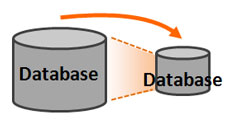
Resize the object and the text doesn't adjust -- how annoying!
When you design icons or graphics in PowerPoint, you may need to incorporate text into them. What happens when you need to resize the object? If you’ve run into this problem before you know that text boxes don’t scale with the object as it is resized, even if the text box is grouped with other objects. You have to fiddle with the font size and positioning, which can be painful if you’re dealing with several objects.
How can you make the text resize with the object?
The answer is less complicated than you think, and it can be a real timesaver. Follow these steps to ensure the text resizes automatically with your objects:
-
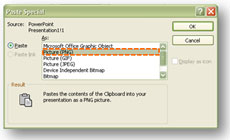
Select the "Picture (PNG)" paste option
Click on the text box and copy the text box (Ctrl + C).
- Paste Special the text box (Ctrl + Alt + V). When you use Paste Special, you will have different paste options. You will want to paste the text as a PNG image.
- Once you’ve pasted the text, delete the text box and reposition the PNG image in the same position.
-
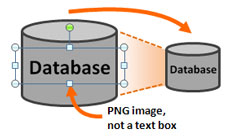
Text as a PNG image enables resizing
You’ll want to group (Ctrl + G) the PNG image with the other object(s) and then resize the grouped object while holding down the Shift key so you maintain the proportion of the object.
In addition to avoiding future resizing issues, converting text into PNG images in objects helps you to avoid another quirky PowerPoint issue related to template defaults.
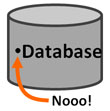
Be careful when you leave text as text boxes
I recently shared some slides with someone who was aggregating slides from several individuals. When I went to present my portion of the presentation, I discovered that the new template’s default text box style inserted a bullet point before all of the text in the objects, which ruined the presentation of my images. Fellow PowerPoint ninjas, learn from my mistake! If you’re including text in an object, you should consider following the steps above to avoid any resizing or template issues later on.



April 9th, 2009 10:14 am
Thank you for the work-around. Still I think this is an annoying glitch in PPT. You should be able to re-size these objects without having to kill the ability to edit text.
April 9th, 2009 10:48 am
If any MS PowerPoint product managers or developers are listening, I agree with you that PowerPoint could do a better job handling this issue. At a minimum I would recommend that if a text box is grouped with other objects, it should resize with those objects.
December 17th, 2009 3:15 pm
Great Scott, Great Tip! This was bugging me so much.
Is it possible to use this same solution to resolve the issues that occur using diagrams in PowerPoint 2003?
February 22nd, 2011 9:54 am
Thanks for the tip! That was buggin the heck out of me (still does, but at least now I know how to get around it – does anyone at Microsoft actually use their own products?)
June 29th, 2011 2:50 pm
Thanks so much for the tip. I do want to add that I used Picture(Windows metafile) and the image came out much sharper than when I used Picture(PNG).
June 29th, 2011 7:04 pm
Great. I’d recommend trying different image types if one isn’t working for you. I’ve seen that make a difference too.
December 22nd, 2011 5:11 am
I agree with Leanne that pasting as a Picture (Enhanced Metafile) is a better option because vector objects remain vector objects instead of being converted to a bitmap like PNG. Metafiles are scalable so there is no loss of resolution even if you decide to enlarge the image later.
December 22nd, 2011 5:15 am
…plus you can always Ungroup a metafile at any time in the futrure if you need to retrieve or change any of the original components.
July 9th, 2012 12:07 am
Well, there IS a trick, but is depends on another bug. (Only tested it on PPT 2008 for Mac): if you change the document size from, let’s say A4 to A3, all ‘artworks’ keep it’s relative size. That means that the text scales! You could use this ass folows: group the objects, copy-pase the group into a new slide in a new presentation, scale this new presentation, copy-paste the group back in.
Advantages: it’s exact and the text stays editable. But, well,… it’s kinda weird!