When is your background slipping into the foreground? (c) DryIcons
In my last blog post, I discussed why most corporate presentation templates fail to meet the needs of PowerPoint users. Frequently, the people assigned to create these PowerPoint templates rarely use them, and as a result they fail to build “usable” templates.
In this article, I’ll focus on a key part of every corporate presentation template – the background. A key point I want to make is that PowerPoint templates are more than just backgrounds, but backgrounds can make or break corporate presentation templates. There are several considerations that go into designing the right background for your corporate template. More…
Popularity: 100% [?]
If you deliver presentations on behalf of any organization, you’ll probably be asked to use the dreaded “corporate template” when you build your PowerPoint presentations. If your experience has been the same as mine, you’ll have run across your own share of sloppy, impractical, or incomplete corporate presentation templates. Why are so many people saddled with ineffective corporate PowerPoint templates and frequently forced to go “rogue”? More…
Popularity: 43% [?]

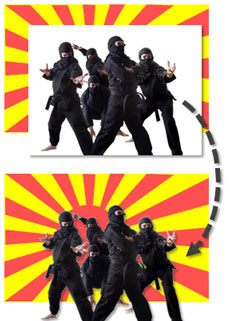
By removing the white background from an image, you can layer one image on top of another graphic.
When you’re working with picture images in PowerPoint, you may want to remove unnecessary parts of an image so that you can see other graphics behind it. If the image in question is a vector image (e.g., WMF), it may be very easy to customize the clip art image. However, if the image is a bitmap image (e.g., PNG, JPG, GIF), then you cannot simply “ungroup” the image and edit it as you want. If you own Photoshop and you’re proficient with it, this task may be fairly straightforward for you. However, many business users don’t have access to this expensive photo editing software or if they do, they may not know how to use it. More…
Popularity: 88% [?]

Do you have more than one tool in your PowerPoint design toolbox? (c)iStockPhoto/Gaby Jalbert
When Olivia Mitchell invited me to discuss what I’d like to see in PowerPoint slide design in 2009, she referenced a recent blog post by Laura Bergellis. In her post, Laura highlighted how we’ve shifted from detailed, bullet-point-riddled slides to simple, highly visual slides. She questioned whether the pendulum swinging from one extreme to another has replaced one set of problems with another set of problems. Laura asked whether we can somehow find the middle ground between these two approaches in 2009. More…
Popularity: 17% [?]
When you transition from PowerPoint 2003 to PowerPoint 2007, you might come across an annoying issue when you try to resize a shape. For some reason, the shape or object cannot be resized by dragging one of the corner or side points. Instead of holding the new size, it snaps back to a smaller height. You can manually format the size of each shape by specifying the exact height, but that can be a tedious process after a few shapes. More…
Popularity: 39% [?]